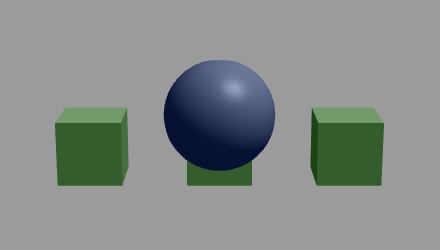
For example, create a Sphere node and in front of it create Box nodes you want to mask out with the Sphere node.
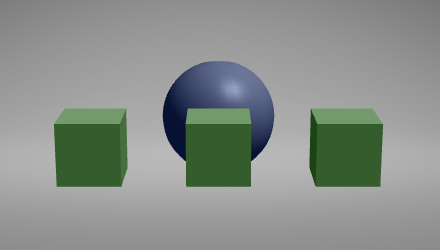
For example:
- Tag the Sphere node with the tag Mask.
- Tag the Box nodes with the tag Masked Out.
For example, create these Tag Filter resources:
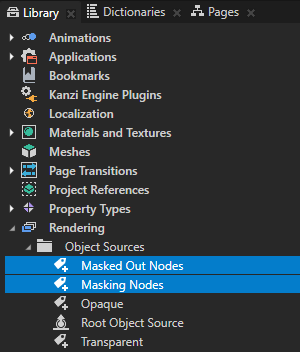
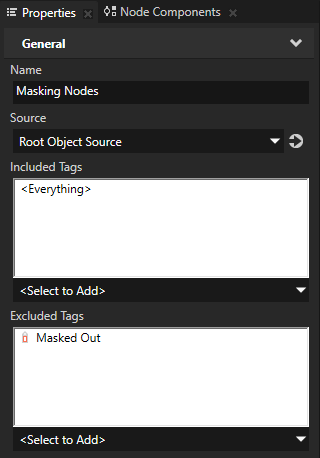
- Masking Nodes and in the Properties add to Excluded Tags the Masked Out tag.
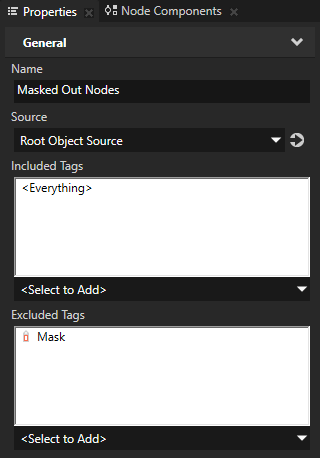
- Masked Out Nodes and in the Properties add to Excluded Tags the Mask tag.
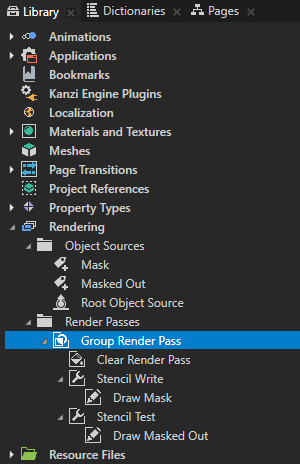
- Clear Render Pass
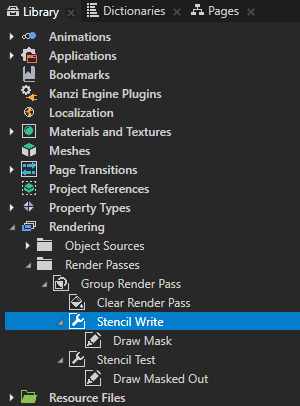
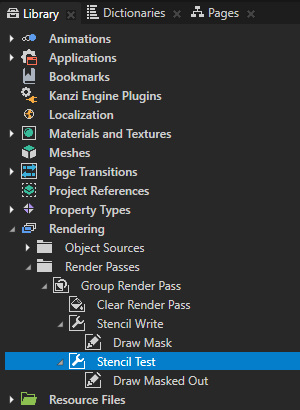
- Two Pipeline State Render Pass resources, and name them.
For example, name them Stencil Write and Stencil Test.
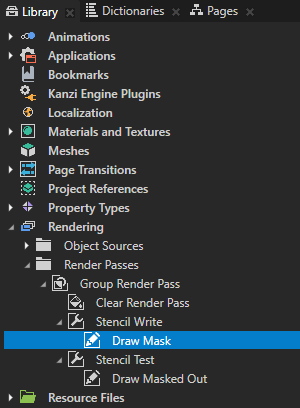
You use the first Pipeline State Render Pass to write the masking area to the stencil buffer, and the second to compare values in the area you want to mask out to those in the stencil buffer. - Inside the first Pipeline State Render Pass create a Draw Objects Render Pass and name it.
For example, name it Draw Mask.
You use this Draw Objects Render Pass to render the nodes you use as the mask. - Inside the second Pipeline State Render Pass create a Draw Objects Render Pass and name it.
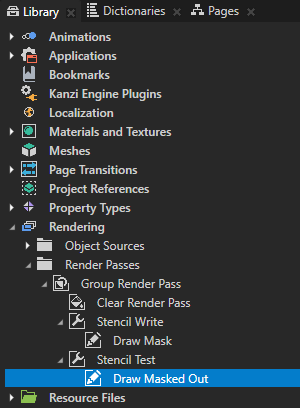
For example, name it Draw Masked Out.
You use this Draw Objects Render Pass to render the nodes you mask out.
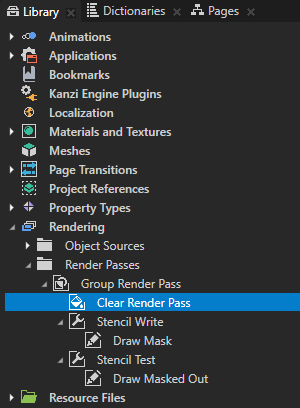
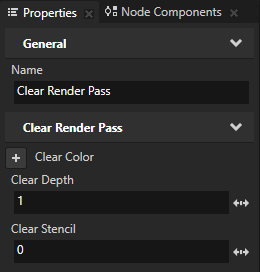
You set this property to make the Clear Render Pass clear the stencil buffer with the stencil value 0.
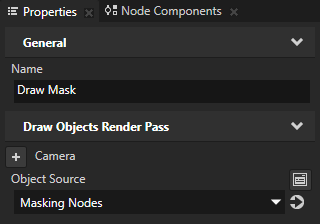
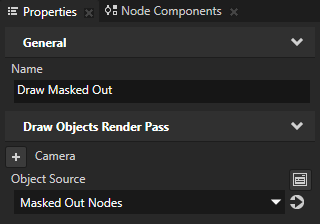
For example, select Draw Mask and in the Properties set Object Source to Masking Nodes.
For example, select Draw Masked Out and in the Properties set Object Source to Masked Out Nodes.
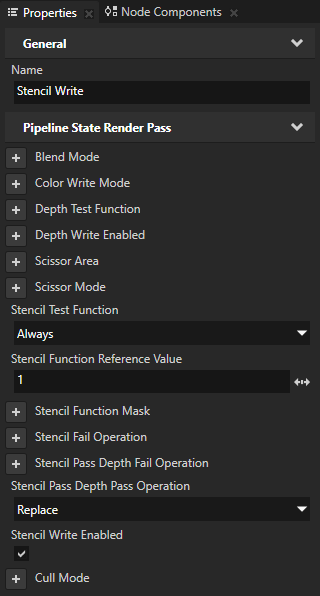
- Stencil Test Function to Always.
You set this property to control how the stencil test compares the stencil reference value to the value in the stencil buffer. See Stencil test functions. - Stencil Function Reference Value to 1.
- Stencil Pass Depth Pass Operation to Replace.
You set this property to replace the value in the stencil buffer with the value of the Stencil Function Reference Value property. See Stencil operations. - Stencil Write Enabled to enabled.
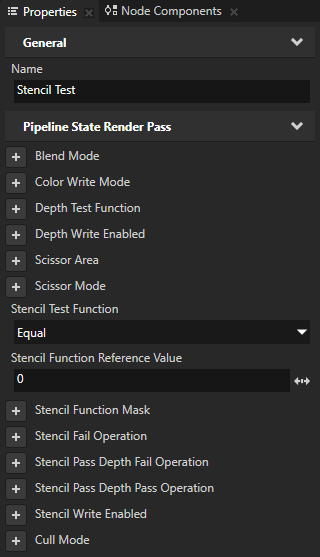
- Stencil Test Function to Equal.
You set this property to the function you use to compare the value of the Stencil Function Reference Value property to the value in the stencil buffer. See Stencil test functions. - Stencil Function Reference Value to 0.
You set this property to the value to which you want to compare the values in the stencil buffer. Kanzi compares the value of the Stencil Function Reference Value property to the value in the stencil buffer according to the operation set by the Stencil Test Function property.
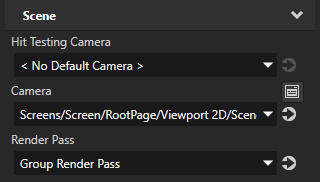
Kanzi Studio renders the Scene using the render passes you created.